
Our App In-Depth: How to Use the Community Wall
05.26.2021 |
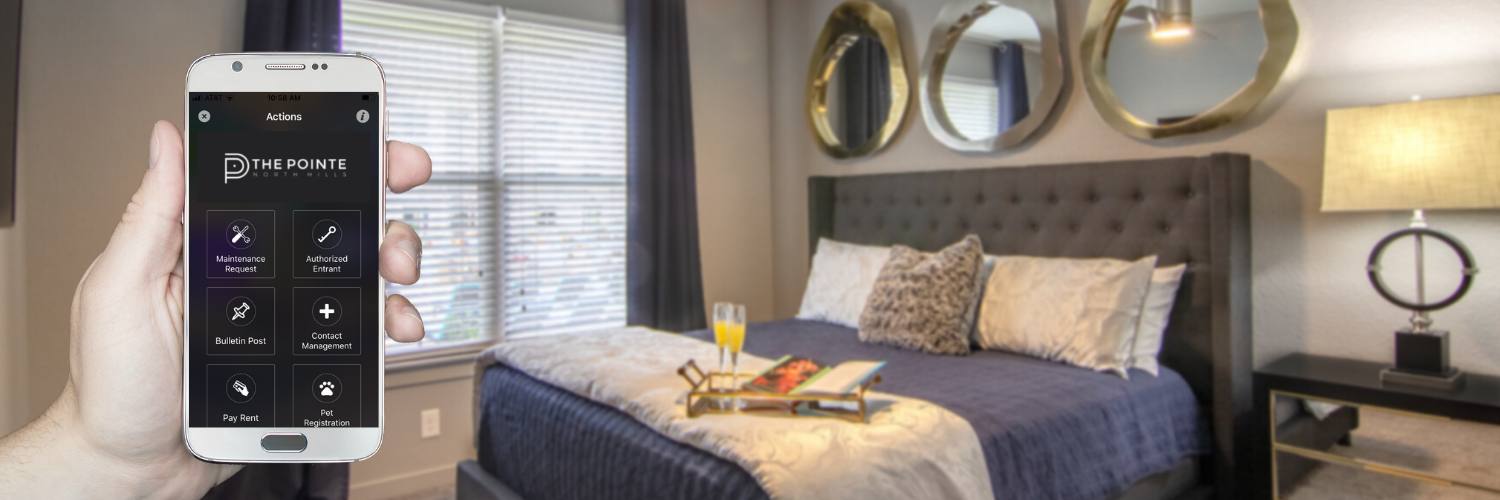
This blog post was updated on November 23, 2021, to reflect new features offered by the ActiveBuilding app.
As a resident here at The Pointe North Hills, you should be well acquainted with the inner workings of our resident app by now.
You’ve probably become a pro at this point, especially since we’ve explained in-depth how you can use the app to reserve amenities, RSVP to events, submit service requests, and even get great deals and discounts.
But are you aware the app also has a community wall? It’s the perfect place to see what your neighbors are posting about, respond to them, and make your own posts, too!
Ready to start utilizing the community wall to its fullest potential? Here is our step-by-step guide.
Step #1: Get the App
If you want to check out our community wall, you must be on our app! (Already have it? Go ahead and skip to Step #2.)
To find our app, just search for “Active Building” in the App Store or Google Play Store.
Once you download the app and enter your information on the login screen, it will sync your resident account and prompt you to register.
Complete the set-up steps and the app will let you in!
Step #2: Open the Community Wall
Honestly, we don’t make the community wall hard to find. Just tap on the menu in the upper lefthand corner of your screen and scroll down to Community Wall.
Once you tap on that option, the communtiy will will open and display all the latest posts your neighbors have made.
Step #3: Make a Post
After perusing everyone’s posts, you may get some ideas of your own for posts. We totally encourage you to do so!
The post box is located at the top of the wall, which makes drafting your post quick and easy.
You can type out a mesage with a general update, list an item you have for sell, create a poll, or recommend a local business.
If you have a photo to share, you can attach it to your post, too!
Step #4: Submit a Bulletin Post
Once you're done detailing the information for your post, tap on Post to submit your post for review.
Our staff will receive a notification to review your post and approve it for publication.
Please Note: It is possible for your post to be rejected for publication, but we only do so if your post violates a community policy. If after two business days you do not see your post on the bulletin board, you can contact our office to appeal the rejection. The app will not notify you in the event your post is rejected.
Step #5: Manage Your Post
After our team approves your post, it will be visible to you and your neighbors on the Community Wall!
From there, your neighbors can like and comment on your post and you can respond to keep the conversation flowing.
Voila! You now know how to use the Community Wall inside our resident app. We hope you enjoy communicating and connecting with your neighbors!
If you have any questions about our app, please contact our office at 501.404.4800.